PriceSync2 Help Center
Step-by-step guides for using PriceSync2a.
Using Future Pricing on The Planner
Two new columns appear on The Planner immediately right of Std Cost: Future Std Cost and Future MSRP. Both show the effective date in the column header. They reflect upcoming vendor price increases that have been announced but haven't taken effect yet.
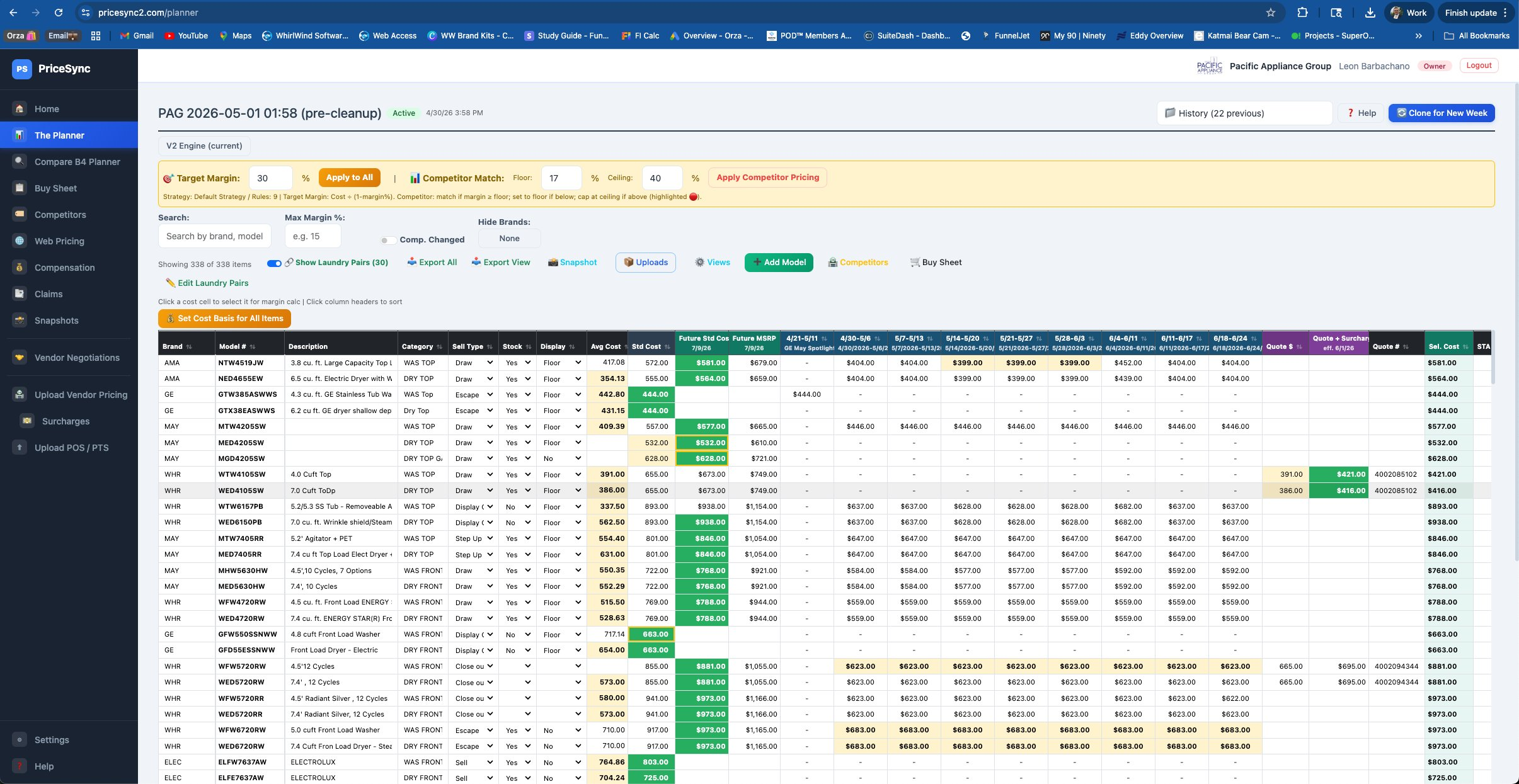
↓ Zoom on the Future Std Cost and Future MSRP columns

Why this matters
Vendors often bill based on ship date, not order date. If you're in a region with long lead times, or if items are often delayed in transit, an order placed today might not ship until weeks or months later — and the price you actually pay is whatever's in effect when it ships.
The Future Std Cost column shows what your standard cost becomes on the effective date. If you're planning a buy that will ship after that date, that's the cost you'll actually pay.
How to use it for buy decisions
For any Whirlpool family item where you're planning to buy:
- Find the row for the model you're considering
- Decide which date you expect the order to ship
- Click the cost cell that matches that ship date:
- Std Cost if it'll ship before the future effective date
- Future Std Cost if it'll ship on or after the future effective date
- The cell turns green. Sel. Cost, Margin, Target, and Decided columns recalculate against the cost you picked.
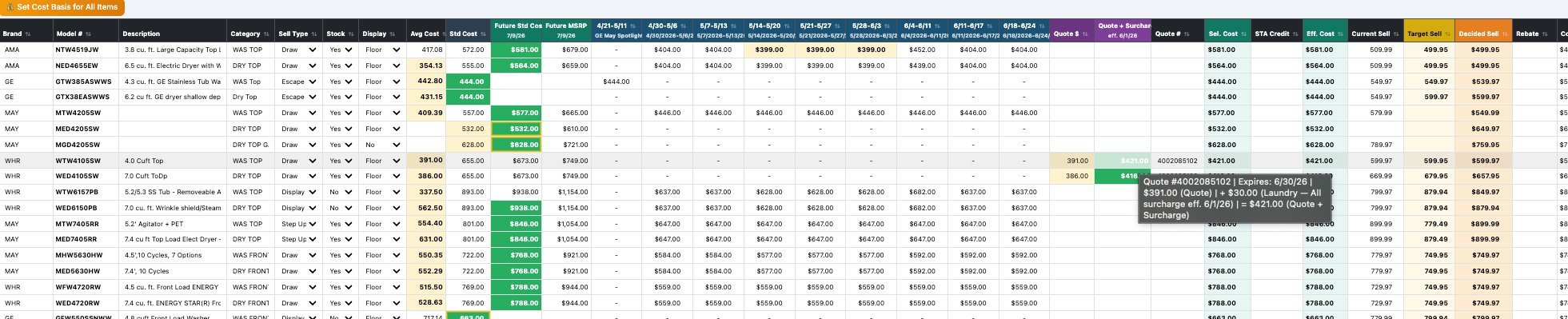
The Future MSRP column
Future MSRP shows the announced MSRP increase that comes with the cost increase. It's display-only — you don't click it. It's there so you can see how the vendor's suggested retail will move, useful when planning your own pricing strategy alongside the cost change.
Available cost basis options
For any row, the costs you can click as your basis are:
- Avg Cost — what you have on hand
- Std Cost — current vendor list cost
- Future Std Cost — upcoming vendor list cost (when announced)
- BuyIn windows — promotional buy-in pricing for that period
- Quote $ — your special quoted price
- Quote + Surcharge — see the Quote Surcharges guide
Click whichever applies. All margin math follows the cell you pick.
Things to know
- The future columns only appear when there's announced future-cost data uploaded for items on your planner. If no future data is loaded, the columns aren't shown.
- Future Std Cost participates in "lowest cost" highlighting — if it's the lowest of all available basis options on a row, it highlights yellow like any other lowest cost.
- When the effective date passes, the future cost is automatically promoted to become the live Std Cost. The future column disappears at that point.