PriceSync2 Help Center
Step-by-step guides for using PriceSync2a.
Using Quote Surcharges on The Planner
When a vendor announces a category-based surcharge that applies to quoted orders, PriceSync can show the surcharged price alongside the regular Quote price so you can compare both when making buy decisions.
How surcharges work in PriceSync
A surcharge schedule is a vendor-specific list of category-to-amount mappings. For example, a vendor might announce a surcharge of $30 on laundry products, $100 on most refrigerators, and $175 on side-by-side refrigerators, all effective on a specific date.
When a schedule is active, PriceSync shows a Quote + Surcharge column on The Planner immediately right of Quote $ — but only for items where the schedule applies. The cell value is the Quote price plus the surcharge for that item's category.
Example: Whirlpool's June 2026 surcharge
The currently active schedule is from Whirlpool. Effective 6/1/26, on quoted builder/pro orders only, applying to brands WHR/MAY/AMA/KAD/JEN. The amounts vary by category:
| Category | Surcharge |
|---|---|
| Laundry — All | $30 |
| OTR / Countertop Microwaves / Ventilation | $15 |
| All Other Cooking | $45 |
| Refrigeration — Top / Bottom / Chest / Sidekick / Gladiator | $100 |
| Refrigeration — SXS / FDBM / Built-In / Specialty | $175 |
| Cleaning (Dishwasher / Compactor) | $25 |
So when a Whirlpool family side-by-side refrigerator with a quote of $1,500 has a ship date of 6/15/26, the Quote + Surcharge column reads $1,675 ($1,500 quote + $175 SXS surcharge).
The original Whirlpool letter is attached to the schedule on the Surcharges admin page if you need to reference the source.
Important: surcharges typically apply based on ship date, not order date
If you're in a region with long lead times, or if items are often delayed in transit, an order placed today may ship after the surcharge effective date — in which case the surcharge applies, even though you ordered before the effective date.
This is why both Quote $ and Quote + Surcharge columns appear side-by-side: you can see both prices and pick whichever matches your expected ship timing.
The Quote + Surcharge column on The Planner
For every quoted item where a surcharge applies, you'll see a Quote + Surcharge column with the effective date in the header.
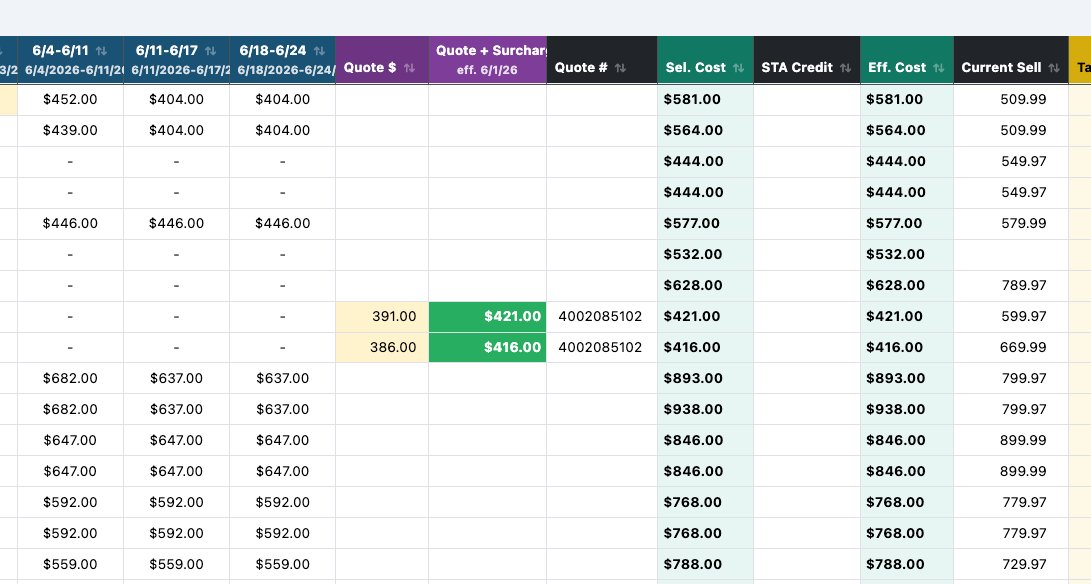
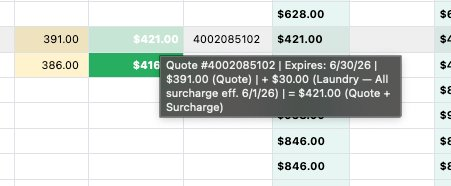
Hovering any populated cell shows the full breakdown: the quote number, the quote expiry date, the surcharge math, and the total.
How to make a buy decision when a surcharge applies
For any quoted item:
- Look at the row — you'll see Std Cost, Future Std Cost (if applicable), BuyIn windows (if any), Quote $, and Quote + Surcharge
- Decide which ship-date scenario applies to this order
- Click the cost cell that matches:
- Quote $ if the order will ship before the surcharge effective date
- Quote + Surcharge if the order will ship on or after the effective date
- Std Cost or Future Std Cost if you're not using a quote (surcharges typically apply only to quoted orders, not retail-sheet orders)
- Margin/Target/Decided recalculate against your selection
Things to know
- The Quote + Surcharge column only appears when at least one surcharge schedule is active. If you don't see the column, no schedule is active.
- Items without a quote don't get a Quote + Surcharge value (the cell is blank — you can't add a surcharge to a price that doesn't exist).
- Items in categories that aren't surchargeable (or that are explicitly Excluded in the schedule) don't get a Quote + Surcharge value either.
- Each surcharge schedule has its own effective date, vendor brand list, and category mappings. If multiple schedules are active, each gets its own column.
Managing the surcharge schedule
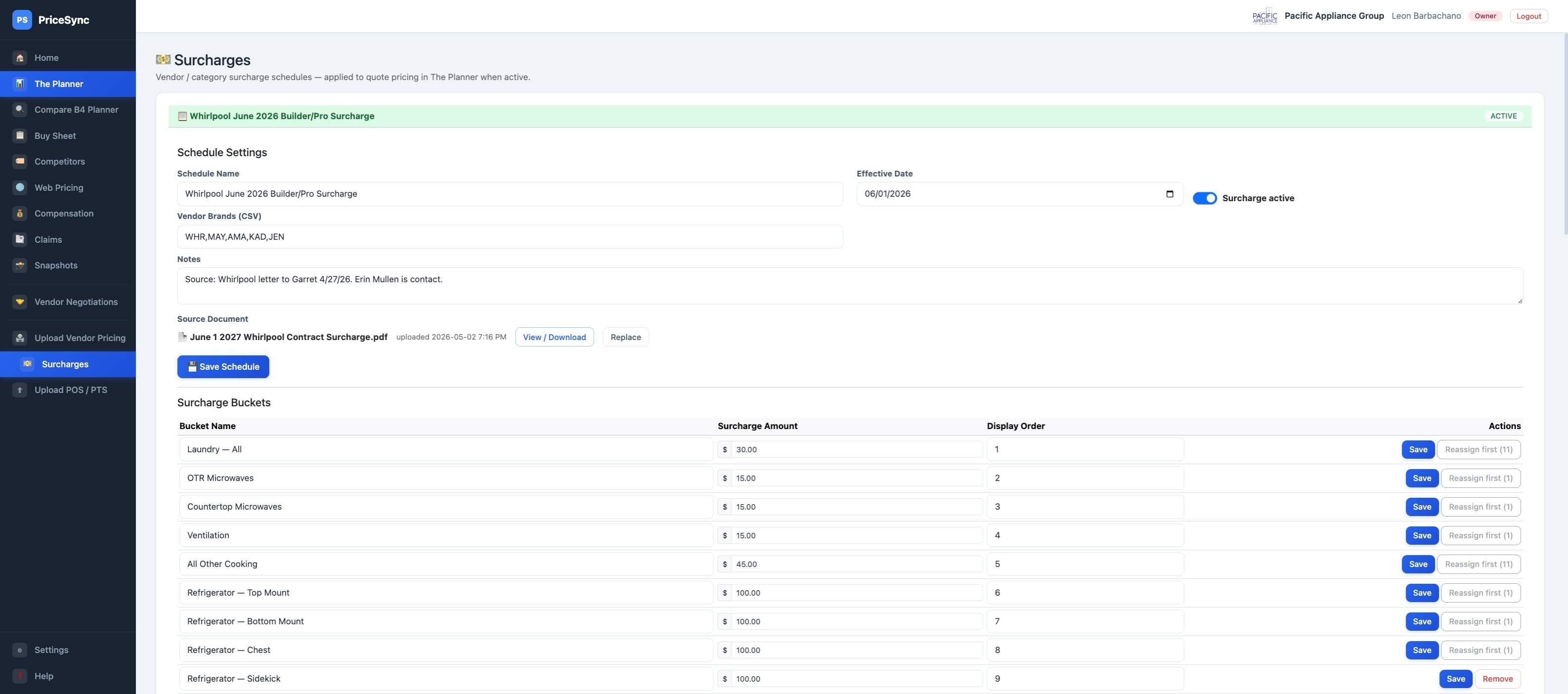
Surcharge schedules are managed on the Surcharges page (in the sidebar, under Upload Vendor Pricing). The original vendor announcement (PDF, image, etc.) is attached to each schedule for reference.
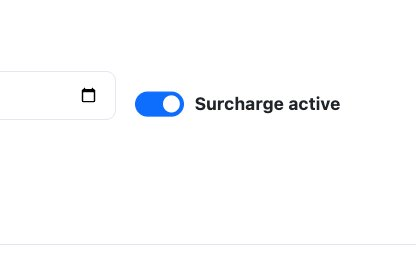
↓ The Surcharge active toggle saves automatically when flipped
What you can change on this page:
- Activate or deactivate the schedule using the toggle. The toggle saves automatically — no Save Schedule click needed. Activating shows the Quote + Surcharge column on The Planner; deactivating hides it.
- Schedule details — Schedule Name, Effective Date, Vendor Brands (comma-separated brand codes), and Notes are all editable. Click Save Schedule when you're done.
- Bucket amounts — change the surcharge amount for any bucket if a vendor revises their announcement. Click Save next to that row to commit.
- Bucket display order — controls the order buckets render on this page (cosmetic only; doesn't affect surcharge calculations).
- Add a new bucket — use the "+ Add bucket" button at the bottom of the bucket list to create a new bucket. Type the name and amount, then Save.
- Remove a bucket — only available when no categories are mapped to it. If a bucket has mappings, reassign those categories to other buckets first.
- Category-to-bucket mappings — each category is mapped to a bucket (or marked Excluded). If a vendor announcement groups categories differently than what's currently mapped, change the dropdown for that category. Mappings save automatically on selection — no Save click needed.
- Replace the source document — if you receive a revised version of the vendor letter, click Replace to upload the new file.
Note: adding a second surcharge schedule (for a different vendor or time period) isn't supported in the UI today. The system can hold multiple schedules, but for now only one is editable at a time. Reach out if you need a second schedule added.