PriceSync2 Help Center
Step-by-step guides for using PriceSync2a.
Reviewing a Vendor Quote on The Planner
When a vendor sends a quote, PriceSync lets you load it, compare every line against what you're already buying, and decide — model by model — what to commit to The Planner. Nothing from a quote touches The Planner until you choose to push it, so you can load a quote now and let the right person make the buy decisions later.
1. Upload the quote
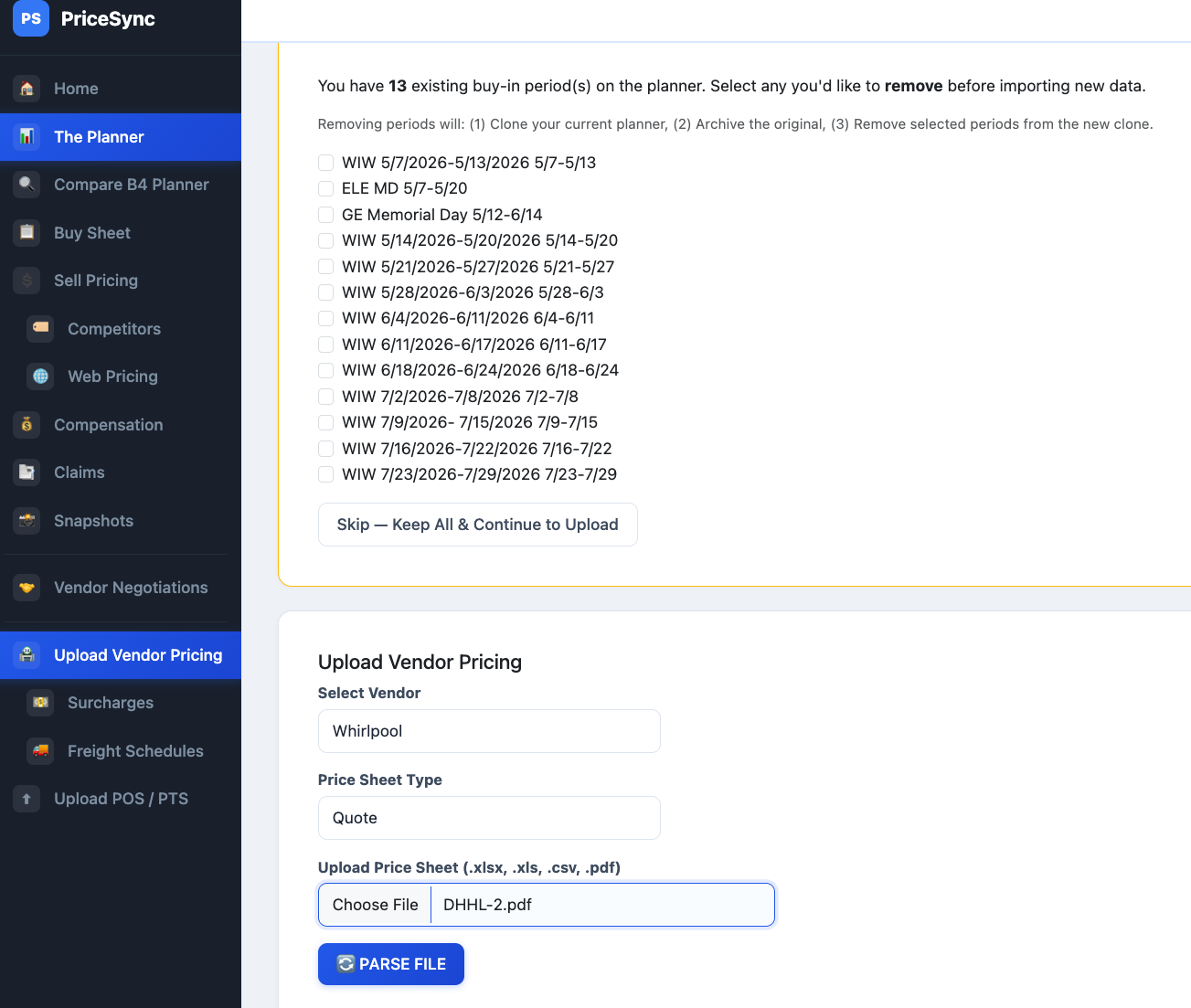
Go to Upload Vendor Pricing, pick the Vendor, set Price Sheet Type to Quote, choose the file (PDF or spreadsheet), and click Parse File.
2. Read the comparison
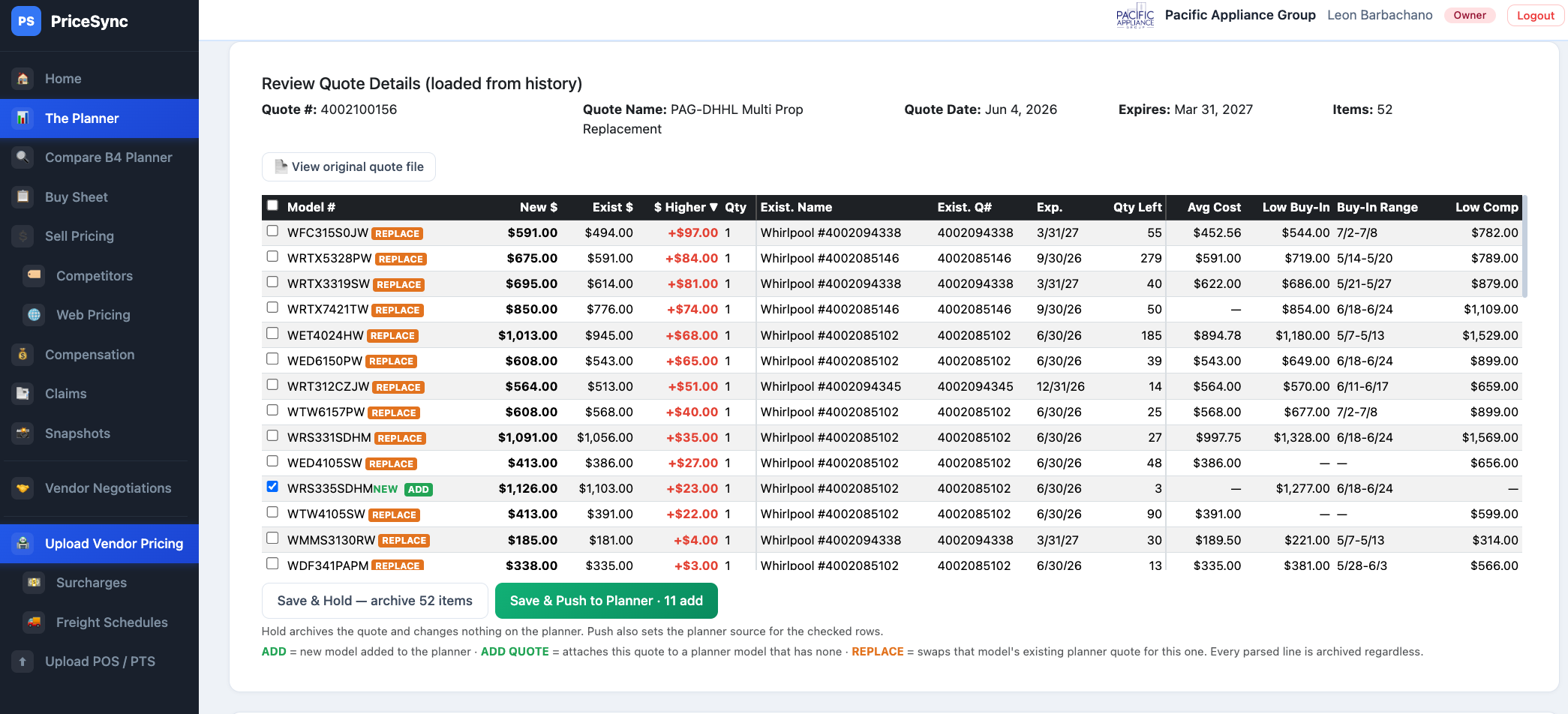
The Review Quote Details table lays out the full decision picture for every line on the quote. The header shows the quote number, name, issue date, and expiration.
For each model you'll see:
- New $ — the price on this quote.
- Exist $ / Exist Name / Exist Q# / Exp. / Qty Left — your lowest current (non-expired) quote for that model from any other quote: its price, project, quote number, expiration, and how many units are still available on it.
- $ Higher — how much the new quote sits above (red) or below (green) that existing quote.
- Avg Cost — what you're actually paying today, based on stock on hand.
- Low Buy-In / Buy-In Range — the best special-buy price and the window to buy it in.
- Low Comp — the lowest competitor price.
These numbers are pulled fresh from The Planner every time you open a quote, so they always reflect today's costs, quotes, and competitor prices.
3. What the tags mean
Each row is tagged with what committing it would do:
- ADD — a new model, not yet on The Planner; pushing it adds it.
- ADD QUOTE — the model is on The Planner but has no quote attached; pushing attaches this one.
- REPLACE — the model already has a quote on The Planner; pushing swaps it for this one.
4. Decide: Hold or Push
There are two ways to save, and both keep a full copy of every line on file:
- Save & Hold — archives the whole quote and changes nothing on The Planner. Use it when a quote is loaded but you're not ready to decide, or the buy call belongs to someone else.
- Save & Push to Planner — archives the quote and sets The Planner's source for the rows you've checked. Check the models you want to commit; the button shows how many you're adding and replacing.
5. Pick up a held quote later
Every saved quote appears in Upload History, tagged HELD (nothing committed yet) or PUSHED (some of its lines are now The Planner's source). The On Planner count tells you how many lines you've committed from that quote — so a held quote reads 0.

Click a quote's Load link to reopen the full Review table, reloaded with today's planner numbers, and commit the models you've decided on. This is how a quote loaded by one person gets worked through and pushed by another.
6. View the original quote
Once a quote is saved, PriceSync keeps the original file. Open it from the View original quote file link in the Review header, or by clicking the file name in Upload History — useful for confirming exactly what the vendor sent.
Why this matters
- Nothing is committed by accident. Loading a quote and committing it to The Planner are separate steps, so the person with the time and the authority makes the call.
- Every current quote stays on file. When a new quote arrives or a standard price goes up, you can see whether a cheaper quote is still live — and whether it still has units left to buy.
- The source is always there. The original quote document is kept for audits and vendor conversations.