PriceSync2 Help Center
Step-by-step guides for using PriceSync2a.
How to Use the Web Pricing Page
The Web Pricing page is where you set this week's sell prices — the number that goes on the price tags in the store and, where applicable, on the website. You work each row against the competitor target, decide a price, and then send that decision where it needs to go with one of three exports.
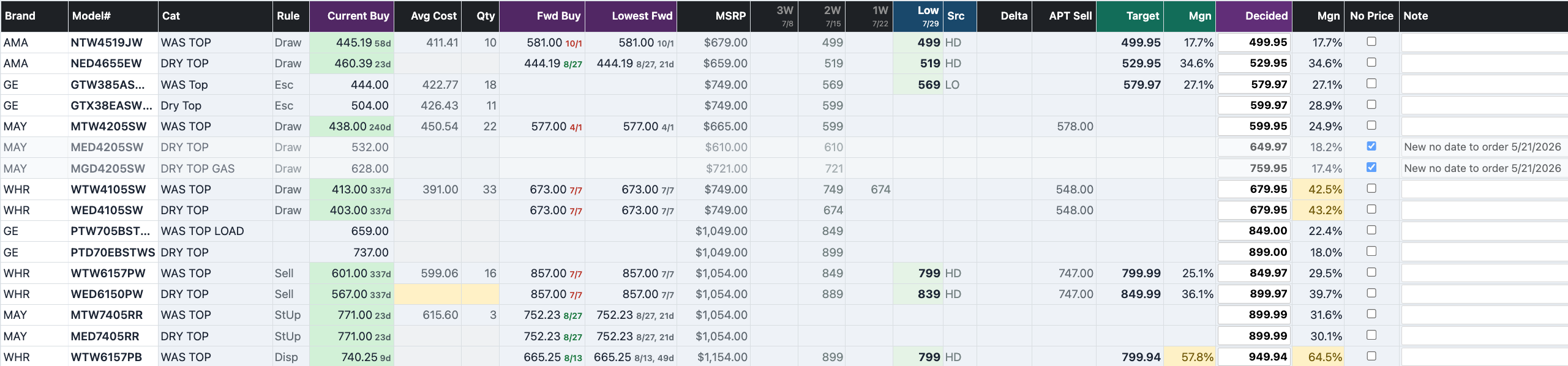
The Web Pricing page end to end — costs on the left, competitors and Target in the middle, your Decided price and margins on the right.
a) What this page is for
Every row is one model. Your job on this page is to decide what we sell it for this week, in store and online, given what our competitors are charging and what the item costs us. The page pulls the numbers together — costs, competitor prices, a suggested target — and you make the call in the Decided column. Nothing you type changes a price tag until you export.
b) Costs effective as of — the anchor
Every cost on this page is resolved as of a specific day, not today. That day is the anchor: your purchasing day. Purchasing runs on a fixed weekday (for most stores, Monday), so the costs you price against are the costs you will actually be able to buy at when the order is cut — not whatever happens to be live this minute.
The purchasing weekday is a store setting, shared with The Planner. The banner at the top of the page shows the resolved date it is using.

The anchor banner — the date every cost on the page is resolved to.
You can also apply a one-off override to preview costs as of a different date — useful for a “what if we bought next week instead?” check. The override is session-only: it does not change the store setting and it resets when you leave.
c) The cost block
The five columns on the left are the cost picture for the row, left to right: Current Buy, Avg Cost, Qty, Fwd Buy, and Lowest Fwd. The three “forward” columns read as a small calendar of what you pay over time.
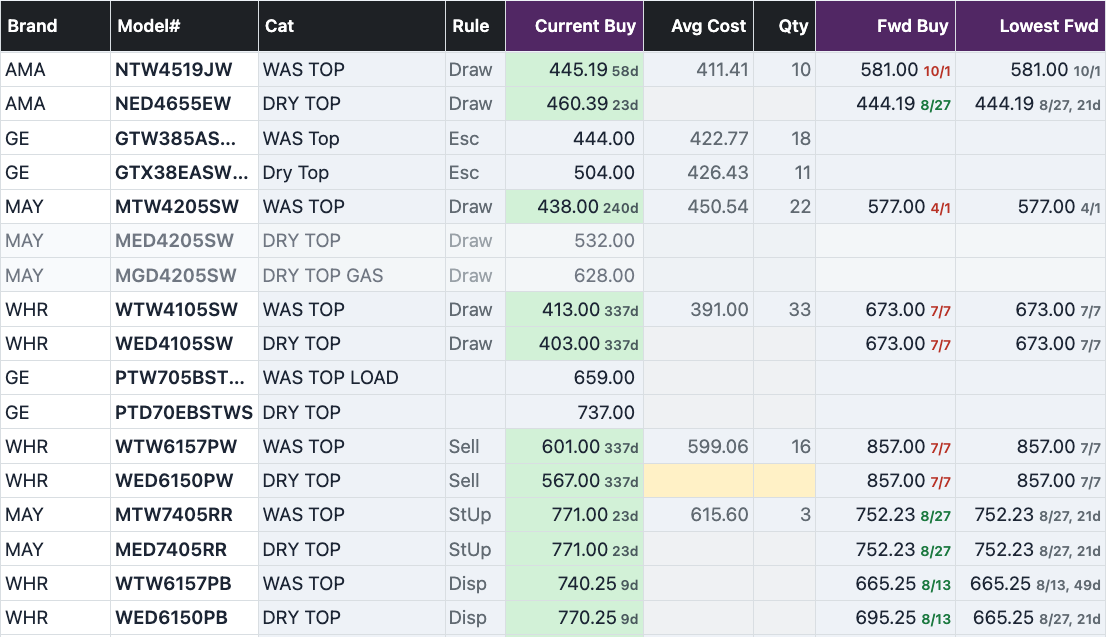
The cost block — today's buy, what's on hand, and the forward calendar.
Current Buy
What you would pay on the anchor day — the lowest price you can actually buy at (a live promo, a valid quote, or the standard price book), plus any surcharge. This is the same number the POS/ERP export uses, so the screen and the export can never disagree.
- The cell colour tells you how long this exact price holds: green holds at least a week, yellow ends within the week, orange ends today or tomorrow, and pink means a dated cost increase is coming.
- The small marker is the days of runway — how many days until the price changes at all. The moment it gets cheaper or dearer, the runway ends there; the next price shows up as Fwd Buy.
- Click the cell to set the row's cost basis to whatever won, the same way the cost cells work on The Planner.

Current Buy — colour = how long this price holds, marker = days of runway.
Avg Cost and Qty
Avg Cost is what the stock on hand cost — reference only. You cannot reorder at average cost, so it never drives a buy decision; it is there for context. Qty is the units on hand from the same POS file. Both follow the freshness of the latest POS file, and blank by the same rules:
- Amber (blanked) — the model was not in the most recent POS upload (how that upload is run — opens How We Work in a new tab), so the on-hand figures are probably stale. The stored values are preserved and shown in the hover.
- Grey (blanked) — the model has never been carried in a POS file (for example, a display-only floor piece the POS does not list).
So a blank Avg Cost or Qty is telling you the number can't be trusted — not that it's zero.
Fwd Buy
The next distinct price and the date it starts — up or down. If the next contiguous promo window is at a different cost, that's Fwd Buy. When the promo calendar runs out, it shows the standard price book on the day after the last window — “here's when you go back to list.”
- A green date means the next price is a drop (it gets cheaper).
- A red date means the next price is a rise.
- It is blank only when there is no forward information at all.
Lowest Fwd
The cheapest price anywhere ahead — its cost, the date it starts, and how long that window runs. It is the floor of the whole forward calendar.
- Equal to Fwd Buy — the floor is already the next step; there is nothing deeper to wait for.
- Higher than Current Buy — everything ahead is more expensive than today, so buy now.
- Below Current Buy — a genuinely cheaper price is coming on the date shown; that's the “worth waiting” signal.
d) Competitor columns and the Target price
The middle of the page shows what competitors are charging (the weekly buckets and the current Low), where each price came from, and the change since last week. From the competitor Low the page computes a suggested Target — the price that meets your competitive rule with your price-ending rounding applied. Target is a recommendation to price against; it is not the price you commit.
e) Deciding
The Decided column is where you set this week's price. As you type it, the two margin columns recalculate live — one against Target, one against your Decided price — both using the row's Current Buy cost.
- Margin colouring flags rows against your floor and ceiling: a price under the floor and a price over the ceiling both stand out, so thin or overpriced rows are easy to spot.
- No Price suppresses a model from the outward web sheet — use it when a model should not show a price online. It does not affect the in-store tag.
- Note is a free-text field that travels with the row into the exports; use it to leave context for whoever reads the sheet.
f) The three exports — and who each is for
The header has three export buttons. They carry different columns to different places, so pick the one that matches where the file is going.
| Export | Goes to | Carries |
|---|---|---|
| Export Web Price Sheet | Our website provider | Brand, Model, Web Price. No cost ever leaves in this file. |
| Export Full View | Internal use | The full picture. Honours your on-screen filters — what you've filtered to is what exports. |
| Export POS Price Sheet | The POS / ERP | Model, Price, Cost, Note. Cost is the anchor-day buy price (the same as Current Buy); the Note says how long it holds. |

The three exports — outward (our website provider), internal (Full View), and the POS/ERP.
After you run Export POS Price Sheet, a summary panel confirms what went out: how many rows carry a cost, split by basis (promo, quote, or standard), and a list of the models with no buyable cost to chase down before the next run.
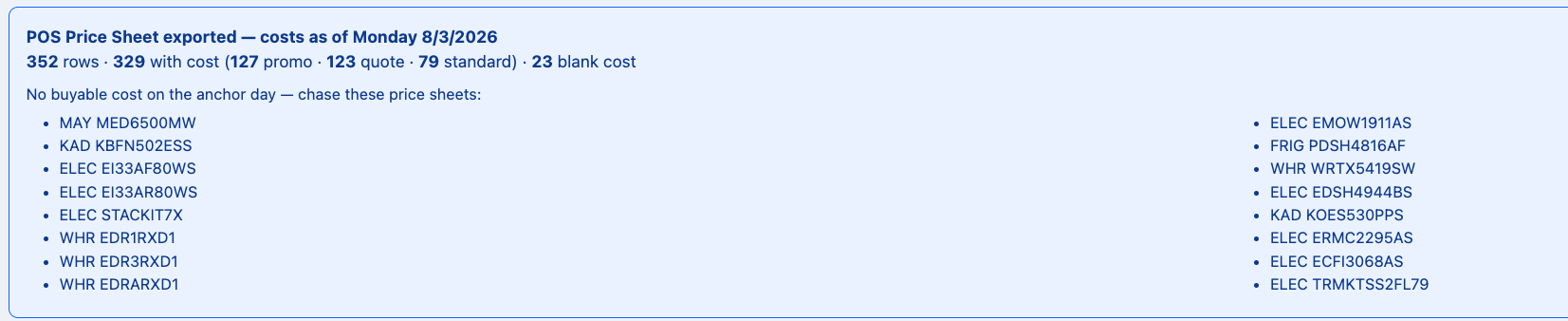
The POS export summary — how many rows carry a cost, split by basis, and which models have no buyable cost to chase.
Why cost never leaves the Web Price Sheet: that file goes outside the building. It carries only Brand, Model, and the Web Price — never a cost. If you need cost, that's the POS Price Sheet (internal) or Full View (internal).
g) Lock in vs export only
Two of the three exports offer lock-in: the Web Price Sheet and Full View. Each of those can either just download a file or also lock in the prices as it goes. Locking in restamps the current prices so the page's record of “what's live now” matches what you just sent — export only leaves that record untouched.
Export POS Price Sheet has no lock-in. It downloads the file directly and never asks — nothing is stamped and no record is written. If you want this week's numbers recorded as the current prices, lock in via the Web Price Sheet.
- When you lock in, a confirmation modal tells you exactly how many rows it will touch before anything changes, so there are no surprises.
- Full View lock-in is scoped to your filter — it locks in only the rows currently in view. The modal labels which set it is about so you know whether you're stamping the whole sheet or just the filtered slice.
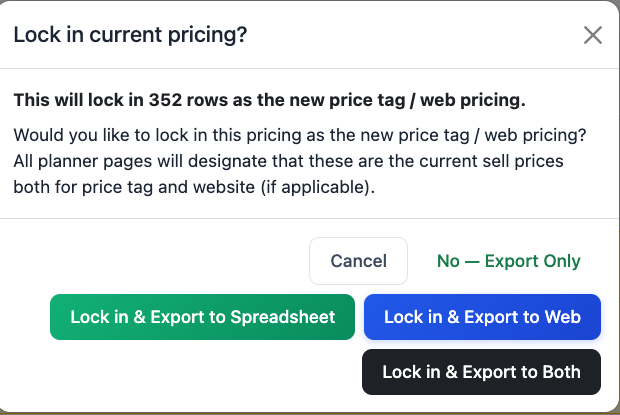
Lock-in confirmation — it tells you the row count and which set before it stamps anything.
Things to know
- Costs are always resolved as of the anchor, not today — check the banner if a cost looks unexpected.
- A blank Avg Cost or Qty is a signal (stale or never-carried), not a zero.
- Fwd Buy and Lowest Fwd are blank only when there is genuinely nothing ahead — a flat, unchanging standard cost has no forward calendar.
- The Web Price Sheet never carries cost. Use the POS Price Sheet or Full View when cost is needed internally.